
In eZeePOS version 3, media keys are setup a bit differently, in order to give more customization on how they work. This guide will go through how to set one up as an EFT key.
For this example, we will be setting a Media 2 key to be used as an EFT card key.
From the SamTouch Office dashboard, navigate to Maintenance -> EZP Media (if you can't see this option, you will need to update your user Roles to be able to see it).
In here, you should see some default keys already setup. You will want to find the Media 2 key and change the description to fit more aptly, like Card.
To the right of this a couple of columns you will then have the function column. You will want to set this to EFT.
Once set, press the Save icon at the top-right of the grid.
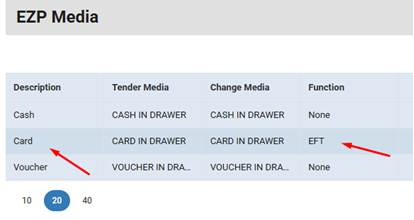
This is the media key now setup for EFT payments. In order for us to enable this for use on the terminal, you will need to do the following:
- From the SamTouch Office dashboard, navigate to Config -> Terminals -> EZP Terminals.
2. In here, find the terminal which you wish to assign the Card key to and pr3ess the config icon on the right-hand side.
3. Once in this terminal's settings, go to the Media tab.
4. You should now be able to see the available media keys. To enable one, in this case the Card key, press the Enabled check- . box on the right-hand side.

Once you have this enabled (and you have the relevant Payment Provider setup) you should then be able to press Save at the top-right. You can then refresh your terminal data on EZP3 and you should be able to see the card key and take EFT payments.