
TL;DR:
- Kitchen screens improve efficiency by providing real-time, digital order updates, reducing errors and delays.
- Proper preparation, including suitable hardware, network stability, and staff training, is essential for successful setup.
- Ongoing staff involvement and process alignment are crucial for long-term adoption and system effectiveness.
How to set up kitchen screens for efficient UK hospitality
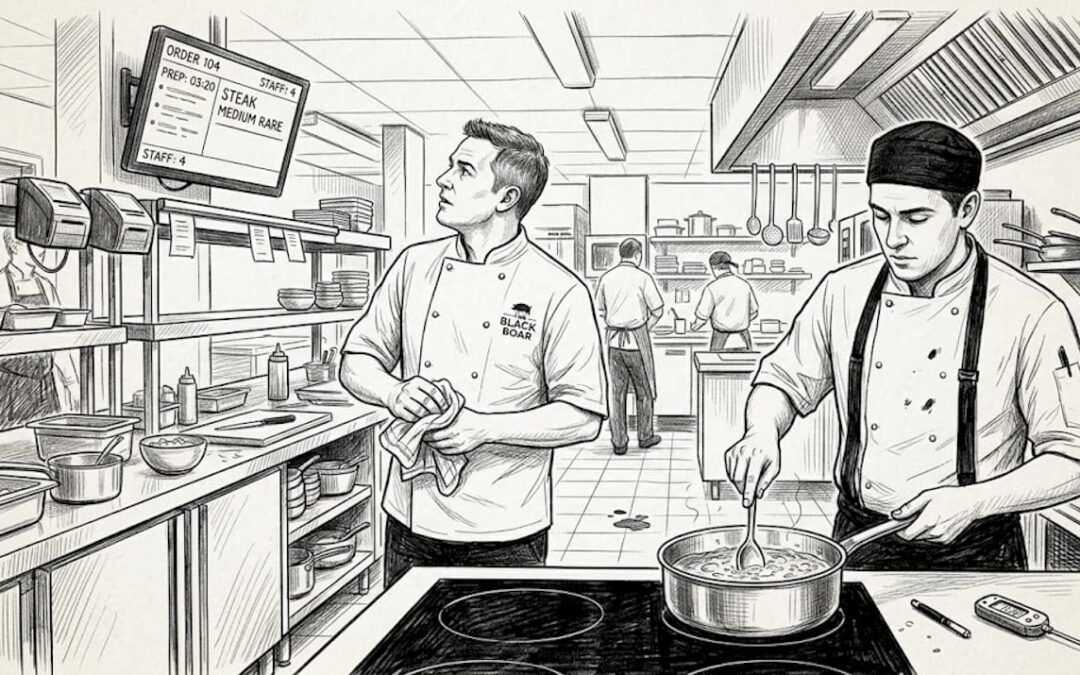
Picture a busy Friday night service. Orders pile up, paper tickets blur under the heat lamps, and a miscommunication between front-of-house and the kitchen means a table waits forty minutes for mains. Sound familiar? For many hospitality venues across the UK, this scenario repeats every weekend. Kitchen screens cut through that chaos by replacing paper tickets with live, digital order displays that update the moment a server places an order. This guide walks you through everything you need: understanding how kitchen screens work, preparing for installation, the setup process itself, how to troubleshoot problems, and how to keep the system running at its best long term.
Table of Contents
- Understanding kitchen screens and POS integration
- What you need to set up kitchen screens
- Step-by-step: Setting up your kitchen screens
- Troubleshooting, common mistakes, and best practices
- Why setup success depends on sound processes, not just good hardware
- Upgrade your kitchen workflow with the right technology
- Frequently asked questions
Key Takeaways
| Point | Details |
|---|---|
| Seamless POS integration | Kitchen screens must be correctly matched and configured with your venue’s POS system for reliable operation. |
| Preparation matters | Gathering the right hardware and ensuring network readiness saves time and prevents issues. |
| Stepwise setup process | A clear, step-by-step approach to installation helps avoid common pitfalls. |
| Training ensures adoption | Ongoing staff training is key to maximising the benefits of any kitchen screen investment. |
| Processes drive results | Technology alone does not guarantee efficiency; real gains come from proper processes and team engagement. |
Understanding kitchen screens and POS integration
Kitchen screens, often called kitchen display systems or KDS, are digital monitors mounted in the kitchen that receive and display order information in real time. Unlike printed dockets, they update instantly, can be colour-coded by order priority, and allow kitchen staff to mark items as complete with a single tap. There are two main types: bump bar screens, which chefs navigate using a physical controller, and touchscreen displays, which respond directly to touch input on the glass.
The way kitchen screens link with a modern POS system is straightforward. When a server enters an order at the POS terminal, that data travels across your local network to the kitchen screen, which displays the order automatically. No shouting across the pass, no crumpled paper tickets. The connection typically runs over a wired Ethernet or Wi-Fi network, and the POS software handles routing, meaning certain order types can be directed to specific screens. A drinks order might go to the bar screen while a hot food order appears only on the grill station display.
Kitchen screens improve efficiency and communication in hospitality environments by reducing the reliance on manual handoffs that are prone to human error. When every team member is working from the same live digital display, the margin for misreading handwriting or losing a ticket drops dramatically.
The efficiency benefits of kitchen screens extend well beyond simple visibility. Consider the data below:
| Metric | Paper ticket system | Kitchen screen system |
|---|---|---|
| Average order error rate | 12-15% | 2-4% |
| Time from order to kitchen acknowledgement | 2-4 minutes | Under 30 seconds |
| Staff time spent chasing order status | High | Minimal |
| Order prioritisation visibility | None | Colour-coded, real-time |
These figures illustrate why UK venues investing in setting up kitchen display systems are seeing genuine operational gains rather than just a technology upgrade for its own sake.
Key operational improvements to expect once your screens are live include:
- Real-time communication between front-of-house and kitchen with no manual steps
- Fewer errors because handwriting is eliminated and orders are routed automatically
- Faster service as chefs can see all open orders and priorities at a glance
- Better team coordination when each station has its own dedicated screen
- Reduced food waste because incorrect orders are caught before preparation begins
Understanding these fundamentals sets you up to make the right decisions during preparation and installation, which is exactly where we go next.
What you need to set up kitchen screens
Before a single cable is connected, good preparation separates a smooth installation from a frustrating one. Installing kitchen screens in UK venues is a straightforward process that brings immediate clarity to the kitchen workflow, provided you have the right equipment and conditions in place before you begin.
Essential hardware
Start with the screens themselves. Commercial-grade kitchen monitors are built to withstand heat, steam, and grease, so avoid consumer-grade televisions, which will degrade rapidly in a professional kitchen environment. You will also need secure wall mounts rated for commercial use, structured cabling or a robust Wi-Fi access point positioned within range of the kitchen, and a compatible POS terminal or hub that supports kitchen screen output.
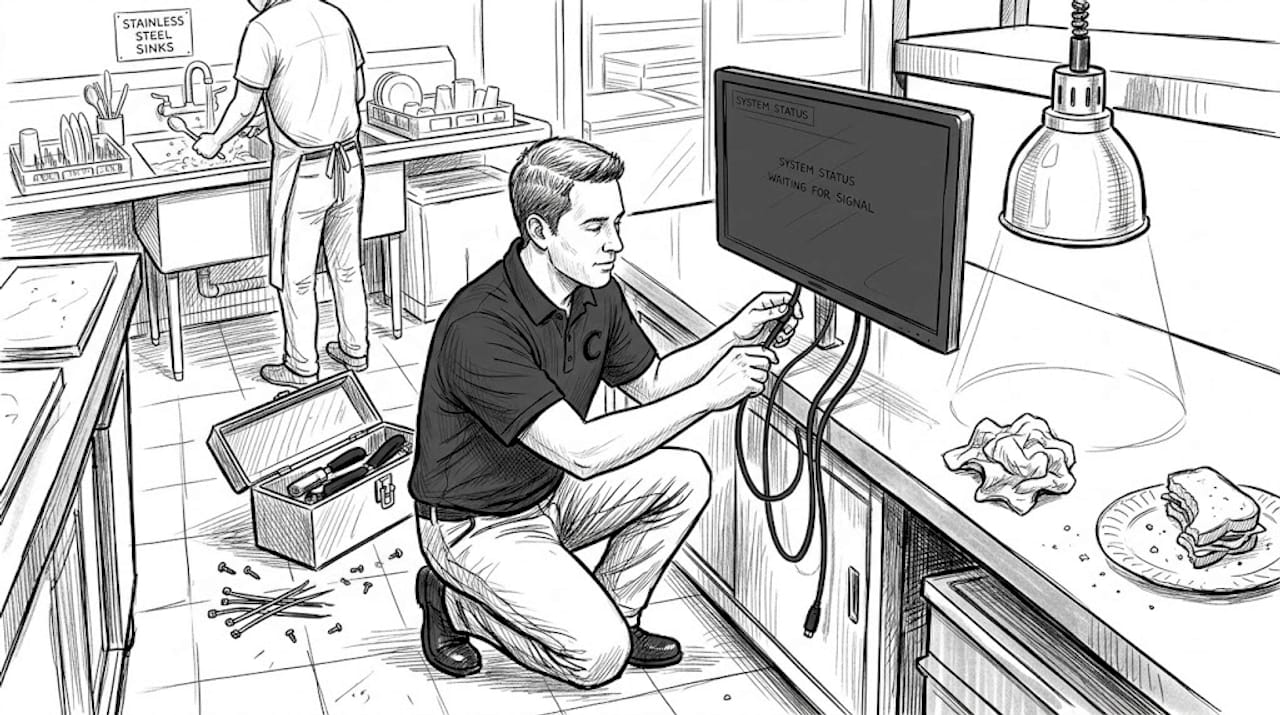
Here is a comparison of the two primary connection options:
| Connection type | Pros | Cons |
|---|---|---|
| Wired Ethernet | Highly reliable, no signal drop | Requires cable routing, less flexible |
| Wi-Fi | Flexible placement, easier install | Vulnerable to interference, needs strong signal |
For most busy kitchens, wired connections are the preferred choice because reliability during a peak service period is non-negotiable. Wi-Fi is a valid option for venues where cable routing is impractical, but you must invest in a quality access point and test signal strength thoroughly at the installation location before committing.
Software requirements
Your POS software must support kitchen screen output natively. Check with your provider that the version you are running includes KDS routing features. You should also confirm that firmware on the screen itself is up to date before installation, as outdated firmware is one of the most common causes of communication errors after setup. The kitchen display systems for UK businesses that deliver consistent results are those where the software stack has been verified end to end before going live.
Network readiness
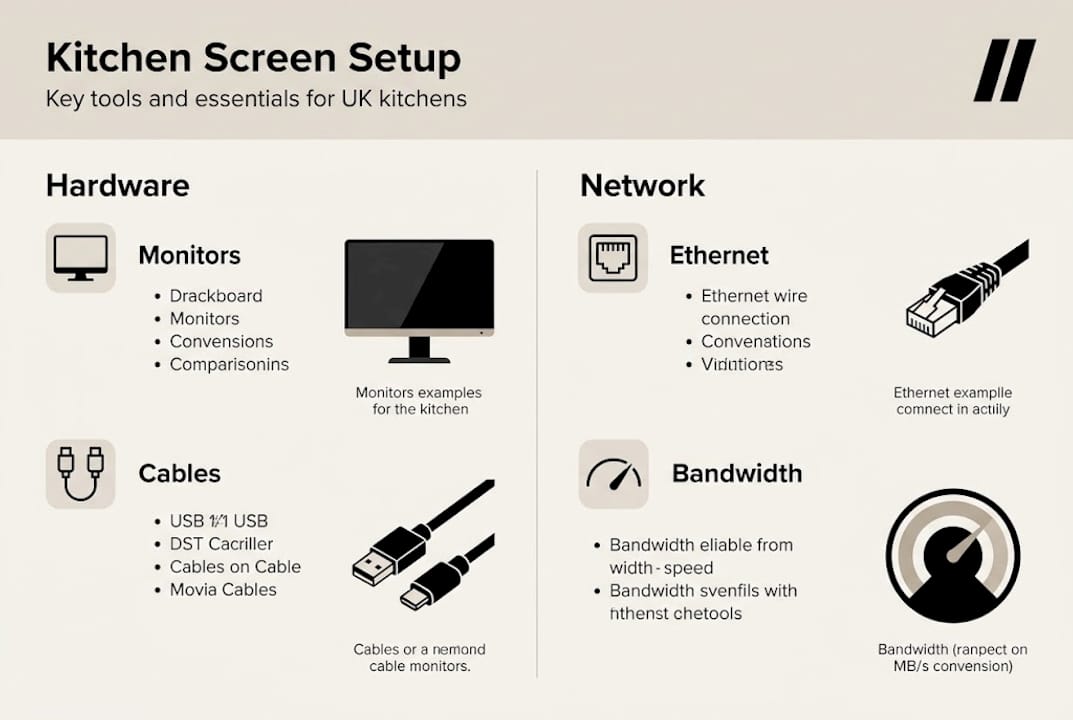
Run a speed and stability test on your kitchen network before installation day. A minimum of 10 Mbps dedicated bandwidth is advisable, though the actual data load from kitchen screens is modest. The concern is network stability rather than raw speed. Intermittent drops cause screens to freeze or miss orders, which defeats the entire purpose.
Staff scheduling
Plan your installation for a quieter period, ideally a Monday morning before the lunch rush. Avoid scheduling setup during a service period. Assign one experienced team member as the point of contact during installation so that configuration questions can be answered quickly without pulling the whole team off the floor.
Pro Tip: Run a full test shift with the kitchen screen active but paper tickets still in use alongside it. This allows your team to build confidence with the new system before you remove the paper safety net entirely.
Step-by-step: Setting up your kitchen screens
With your hardware ready and your network verified, you can move into the actual setup process. The following steps apply whether you are installing a single screen at the pass or a multi-station system across several kitchen sections.
-
Mount the screen securely. Fix the wall mount at eye level for standing kitchen staff, typically between 155 cm and 170 cm from the floor. Ensure the bracket is rated for the weight of your screen and that it is fixed to a solid surface, not just plasterboard. Route power and data cables through the wall or along trunking to keep the kitchen safe and tidy.
-
Connect power and data. Plug the screen into a dedicated power socket rather than a shared extension lead. If using Ethernet, connect the cable to the nearest network switch with a cable no longer than 90 metres to maintain signal integrity. If using Wi-Fi, pair the screen with your dedicated kitchen access point during this step.
-
Power on and run initial configuration. Once powered, the screen will prompt for basic settings including display language, screen brightness, and network credentials. Complete these settings before attempting to link the screen to your POS.
-
Configure the POS to recognise the screen. Within your POS back-office settings, navigate to the kitchen display configuration panel. Add the new screen as a destination, assign it to the relevant order categories (for example, hot food, cold starters, or drinks), and set your preferred alert sounds or visual cues for new orders.
-
Test order flows end to end. Place a test order at the front-of-house POS terminal and confirm it appears on the kitchen screen within seconds. Test the bump function to mark orders as complete and verify that the completion status feeds back to the POS correctly. Linking screens with POS systems in hotels, bars, and restaurants follows this same core process regardless of venue type.
-
Adjust visibility and permissions settings. Set the order display time, which is how long a completed order remains visible before clearing. Configure user permissions so that only kitchen staff can mark orders as complete, preventing accidental bumps from front-of-house terminals.
-
Run a live trial. Conduct a short trial service with a skeleton menu. Watch how orders flow, observe whether the screen placement allows all relevant staff to read it clearly, and note any routing errors to correct in the POS settings.
The goal of setup is not a perfect first run. It is a system that your team understands, trusts, and can operate confidently under pressure. Document every configuration step so that future changes or replacements can be handled quickly.
For venues looking at transforming restaurant workflow with screens, the investment in careful setup pays dividends every single service.
Troubleshooting, common mistakes, and best practices
Even a well-planned installation will encounter hiccups. Knowing what to look for means you resolve issues in minutes rather than hours.
Common problems and their causes
- Orders not appearing on the screen. Nine times out of ten, this is a network issue. Check that the screen and POS are on the same network subnet, and verify that no firewall rule is blocking communication between devices.
- Screen freezing or lagging. Usually caused by outdated firmware or insufficient memory on the screen device. Update firmware and restart the screen. If the problem persists, check whether other devices on the network are consuming excessive bandwidth.
- Incorrect order routing. Orders appearing on the wrong screen indicate a misconfigured routing rule in the POS back office. Review the category-to-screen assignments and correct them.
- Power interruptions causing screen reboots. Invest in an uninterruptible power supply (UPS) unit for your kitchen screen setup. A brief power flicker during service can cause a reboot that takes several minutes, during which orders may be missed.
Digital kitchen screens improve kitchen operations and order flow in restaurants and cafés when the underlying infrastructure is solid, but they cannot compensate for a poor network or unreliable power.
Staff-related mistakes to watch for
- Staff bumping orders prematurely before the dish is plated
- Kitchen team ignoring the screen and reverting to verbal communication during busy service
- Front-of-house staff placing orders without selecting the correct table or cover number, causing confusion on screen
Pro Tip: Hold a fifteen-minute briefing before the first live service using kitchen screens. Walk through the workflow visually so that every team member knows their role. Refer to other hospitality software solutions that your venue may already use, so staff can see how the kitchen screen fits into the broader digital ecosystem they work with daily.
Ongoing best practices
Schedule a monthly firmware check on all kitchen screens. Review order completion times monthly using POS reports to spot whether average ticket times are trending upward, which can signal a screen placement issue or a training gap. Explore other helpful kitchen technologies that complement your kitchen screens, such as integrated reservation systems and stock management tools, to build a genuinely joined-up operation.
Why setup success depends on sound processes, not just good hardware
Here is something that rarely appears in setup guides: the best kitchen screen hardware in the world will not fix a dysfunctional kitchen workflow. We have seen venues invest in top-tier equipment only to find adoption stalling within three weeks because nobody changed the underlying habits that caused the problem in the first place.
The venues that get lasting value from kitchen screens and actual efficiency gains treat setup as a cultural change, not a technology swap. They involve kitchen staff in the decision before purchase. They ask chefs where the screen should be mounted rather than making that call from the office. They run the trial period collaboratively and act on feedback.
The unexpected truth is that the technical side of setup is the easy part. Configuring a screen to receive orders takes an afternoon. Getting a team to consistently use the system correctly during a 200-cover Saturday service takes weeks of reinforcement and honest conversations. Venues that skip this human side of implementation often end up with expensive screens that staff work around rather than with. Treat your kitchen team as partners in the rollout, and the technology will deliver exactly what it promises.
Upgrade your kitchen workflow with the right technology
If this guide has clarified what is possible with kitchen screens, the next step is finding the right system for your specific venue. The difference between a smooth rollout and a frustrating one often comes down to choosing technology that is built for UK hospitality and backed by people who understand it.
At EzeePOS, we supply and support UK kitchen order screens designed specifically for the demands of busy hospitality environments, from independent cafés to multi-site restaurant groups. Our hospitality POS solutions integrate kitchen screens natively, with local UK installation support and ongoing human assistance included as standard. No tiered pricing, no hidden feature locks. Get in touch to arrange a tailored demo and see exactly how your kitchen could look with the right system in place.
Frequently asked questions
What do I need to connect kitchen screens to my POS system?
You need screens that are compatible with your POS software, a stable network connection, and the correct Ethernet cables or a verified Wi-Fi setup. Review the full hardware and software prerequisites before purchasing any equipment.
Can kitchen screens work with any hospitality POS?
Most modern kitchen screens are designed to integrate with leading UK hospitality POS systems, but POS compatibility should always be verified with your provider before purchase to avoid costly mismatches.
How do I train staff to use kitchen screens effectively?
Provide hands-on training before the first live service, start with basic functions like viewing and bumping orders, and reinforce good habits during actual service shifts. Consistent staff training and adoption from day one prevents the bad habits that undermine long-term system performance.
What are the main reasons kitchen screen setups fail?
Most failures come down to missing or unstable network infrastructure, software or firmware mismatches, or insufficient staff adoption. Addressing common mistakes in setup before going live dramatically reduces the risk of early failures.
Recent Comments