
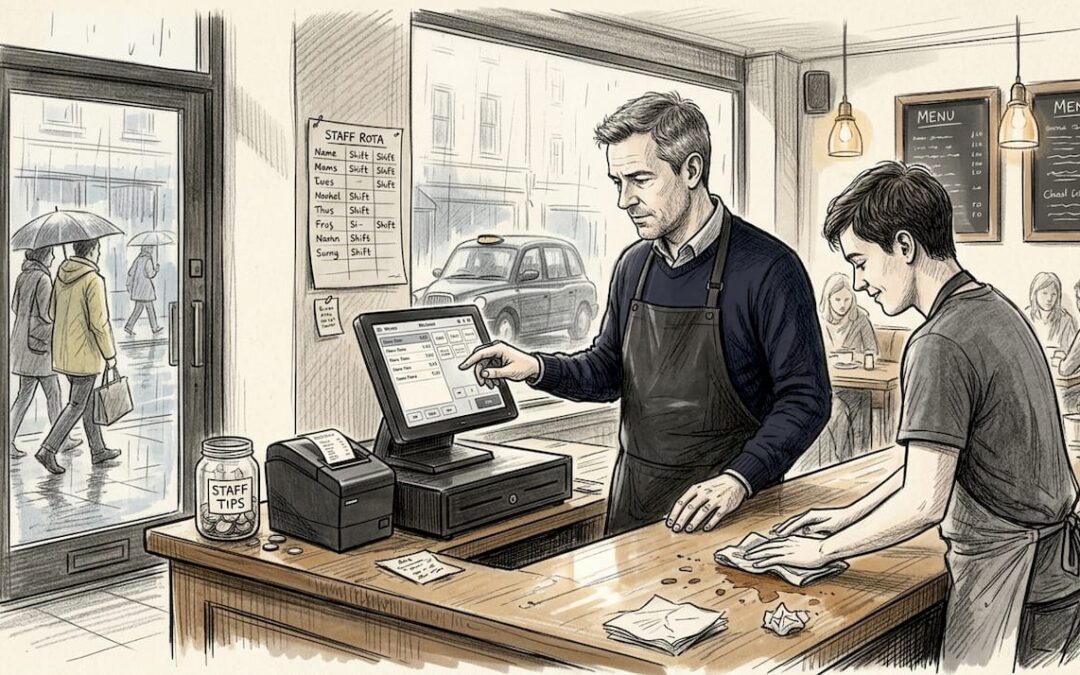
Poor systems are quietly draining UK hospitality venues dry. Lost productivity costs the sector £2.7 billion every year, with staff losing over an hour each per shift to clunky processes and workarounds. If your team is juggling paper tickets, battling a slow terminal, or manually reconciling end-of-day takings, you are leaving money on the table. This guide walks you through every stage of POS workflow setup, from planning and hardware selection to going live and ongoing optimisation, using practical, UK-specific examples throughout.
Table of Contents
- Understanding POS workflow in hospitality
- What you need before you start: requirements and planning
- Step-by-step: how to set up your POS workflow
- Troubleshooting, optimisation and ongoing maintenance
- Upgrade your POS workflow with the right tools
- Frequently asked questions
Key Takeaways
| Point | Details |
|---|---|
| Efficient POS boosts profits | An optimised POS workflow reduces errors, cuts wait times, and lifts sales for UK hospitality venues. |
| Preparation prevents costly mistakes | Careful needs assessment and planning ensure you pick the right tools and avoid mismatches. |
| Stepwise setup is essential | Following clear steps streamlines setup and lowers disruption during the switch. |
| Continuous improvement matters | Ongoing KPI monitoring and routine workflow reviews keep your operations sharp and responsive. |
Understanding POS workflow in hospitality
A POS workflow is the complete chain of actions that happens every time a customer places an order. It covers order capture, kitchen communication, payment processing, and end-of-day reporting. When each link in that chain works smoothly, your venue runs faster, your staff feel less stressed, and your customers leave happier.
“Optimised workflows can increase table turnover by 20 to 25 per cent, cut order errors by up to 27 per cent, and reduce service times by as much as 40 per cent.”
Those are not marginal gains. For a busy Friday night service, shaving minutes off each table turn can mean fitting in an extra sitting. That is real revenue, not theory. Understanding the POS system benefits for hospitality starts with recognising what a modern system must handle.
A capable hospitality POS needs to manage:
- Split bills and merged tables without staff having to improvise
- Multi-location menu and stock synchronisation in real time
- Offline mode so service continues even when the internet drops
- Kitchen display screens that replace printed tickets and reduce miscommunication
- Cloud-based reporting accessible from anywhere, at any time
The cloud POS advantages for UK venues are particularly significant. Cloud systems update automatically, store data securely off-site, and let you monitor performance remotely. Whether you run a single café or a group of bars, cloud connectivity removes the bottlenecks that legacy systems create. Choosing between table ordering vs counter service also shapes your entire workflow, so it is worth thinking through your service style before you configure anything.
What you need before you start: requirements and planning
Rushing into setup without a clear plan is one of the most common mistakes venue operators make. A thorough needs assessment saves you from expensive reconfigurations later. As small business guidance consistently recommends, prioritising cloud-based POS with hospitality-specific features and starting with a proper needs assessment is the foundation of a successful rollout.
Start by mapping your service style, peak periods, menu complexity, and team size. A quick-service café has very different requirements from a 60-cover restaurant with a cocktail bar. Knowing your types of POS systems helps you match the right solution to your specific operation.
Hardware you will need:
- Touchscreen terminals (countertop or wall-mounted)
- Card readers compatible with UK payment providers
- Receipt printers (thermal, for speed)
- Kitchen display screens or ticket printers
- Tablets for tableside or mobile ordering
- Self-service kiosk units if you run a fast-casual or quick-service format
| Element | Core function | Nice-to-have add-on |
|---|---|---|
| Touchscreen terminal | Order entry and payment | Customer-facing display |
| Kitchen display screen | Order routing and timing | Colour-coded priority alerts |
| Tablet or handheld | Tableside ordering | QR code menu integration |
| Receipt printer | Customer receipts | Email or SMS receipt option |
| Self-service kiosk | Upsell and queue reduction | Loyalty programme integration |
| Cloud back office | Reporting and inventory | Multi-site dashboard |
On the software side, you need table management, real-time inventory sync, offline functionality, and integrations with your payment provider and any booking or loyalty platforms you use. A unified POS platform that handles all of this in one place is far easier to manage than stitching together separate tools.
Pro Tip: Involve your front-of-house and kitchen staff in the planning stage. They will flag practical issues you might never spot from the office, and their early buy-in makes training far smoother.
Also plan for data migration from the start. If you are moving from an existing system, your menu data, pricing, and customer records need to transfer cleanly. Leaving this to the last minute causes delays and errors on launch day.
Step-by-step: how to set up your POS workflow
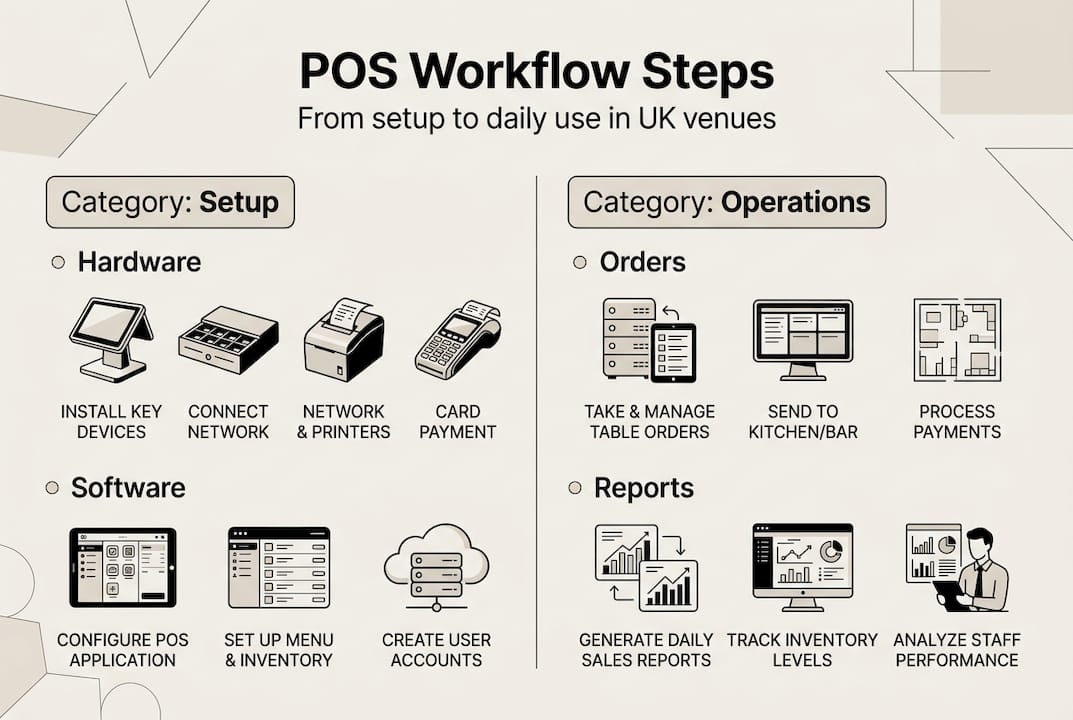
With your checklist ready, you can move into implementation. Breaking the process into clear stages keeps the project manageable and reduces the risk of missing something critical. A structured step-by-step POS setup process covers needs assessment, hardware, software configuration, integrations, payments, training, testing, and go-live monitoring.
- Assess your business needs. Document your service style, covers, peak hours, and menu size. Decide whether you need table ordering, counter service, or a hybrid approach.
- Select and order hardware. Match terminals, printers, and screens to your floor plan. Factor in cable routing, power points, and Wi-Fi coverage.
- Install software and configure your store. Set up your menu, modifiers, pricing tiers, and tax rates. Use template-based menu entry where possible to speed this up significantly.
- Set up payments and integrations. Connect your card reader, configure tipping options, and link any third-party platforms such as booking systems or accounting software.
- Train your team. Run hands-on sessions for front-of-house and kitchen staff separately. Focus on the most common scenarios first: taking an order, splitting a bill, processing a refund.
- Test thoroughly before going live. Run a full end-to-end test during a quiet period. Process dummy orders, test kitchen routing, and simulate a split bill and a table merge.
- Go live and monitor closely. Launch during a lower-volume service if possible. Have a support contact on standby and watch your KPIs from day one.
The choice of service configuration has a direct impact on your results. Here is how the main options compare:
| Configuration | Best for | Key benefit | Watch out for |
|---|---|---|---|
| Table ordering | Restaurants, gastropubs | Higher spend per cover | Requires reliable Wi-Fi throughout |
| Counter service | Cafés, fast food | Faster throughput | Queue management at peak times |
| Hybrid | Bars, casual dining | Flexibility across service styles | Staff need training on both modes |
The cloud POS setup advantages are especially clear at this stage. Cloud-based systems can be configured remotely, updated instantly, and rolled back if something goes wrong, without waiting for an engineer to visit.
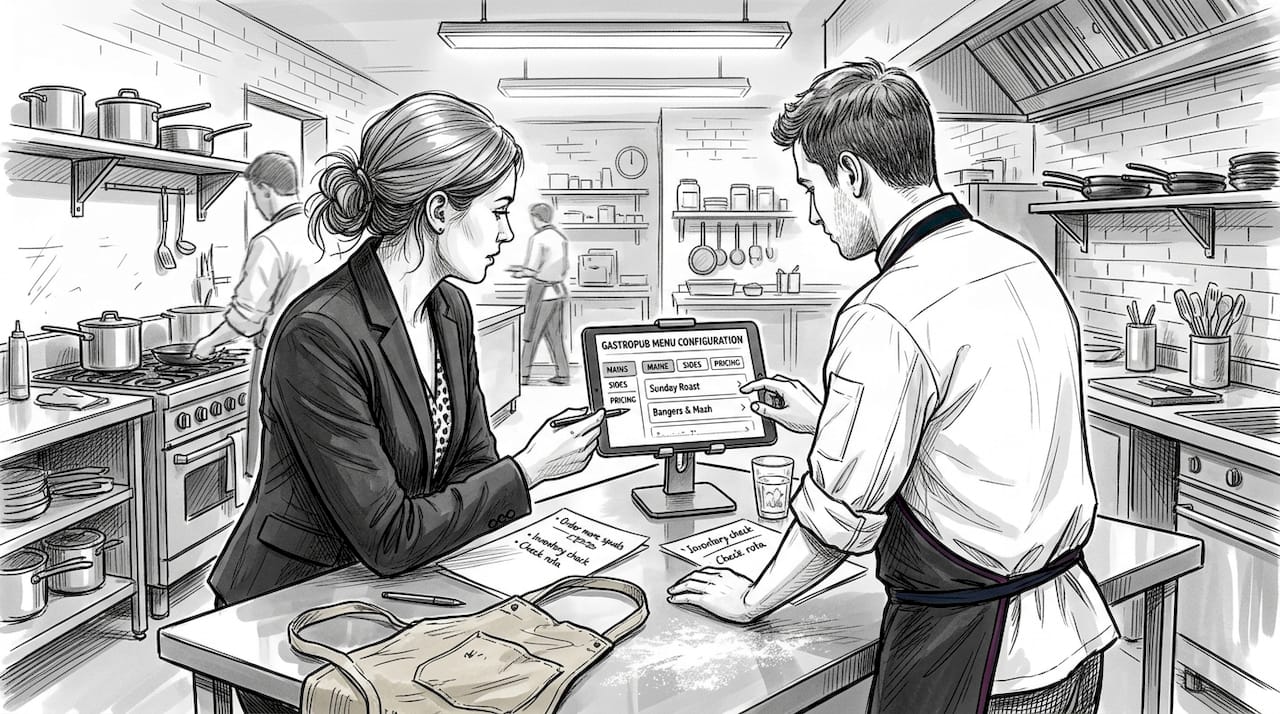
Pro Tip: Build your menu in the system at least a week before go-live. This gives staff time to familiarise themselves with item names, modifiers, and categories before they are under pressure during a real service.
If you are upgrading your POS system rather than starting from scratch, run both systems in parallel for at least one full service before switching over completely. It is a small extra effort that prevents a very stressful situation.
Troubleshooting, optimisation and ongoing maintenance
Launching your POS workflow is not the finish line. The venues that get the most from their systems are the ones that treat setup as the beginning of an ongoing process. Post-go-live KPI monitoring for metrics like turnover and error rates is essential for continuous optimisation.
Common issues you will encounter include:
- Connectivity drops: Ensure your system has a reliable offline mode so orders continue even when the internet is interrupted. Check your router placement and consider a backup mobile data connection.
- User errors: These usually point to a training gap rather than a system fault. Identify which steps staff are getting wrong and run a short refresher session.
- Staff churn: New starters need to get up to speed quickly. A system with an intuitive interface and built-in training mode reduces the time it takes to onboard someone new.
- Menu drift: Prices change, items get added, and seasonal specials come and go. Assign one person to own menu updates and set a regular review date.
For ongoing maintenance, build these habits into your routine:
- Review transaction error reports weekly to catch recurring mistakes early
- Check inventory sync accuracy at the end of each week
- Update software and firmware as soon as updates are released
- Audit user permissions every quarter, especially after staff changes
- Back up your configuration settings before making any major changes
Pro Tip: Schedule a monthly workflow review with a mix of front-of-house and kitchen staff. Ask them what slows them down and what they wish the system could do. Their feedback often reveals quick wins that management would never spot.
The back office and POS efficiency connection is often underestimated. Your back office data tells you which menu items are slowest to process, which shifts have the highest error rates, and where your busiest bottlenecks occur. Use that data to make targeted improvements rather than guessing. For more practical guidance, explore these efficient POS operations tips that apply directly to UK hospitality venues.
Know when to consider an upgrade. If your system cannot handle new service modes, lacks integrations you need, or requires constant workarounds, the cost of staying put is higher than the cost of switching.
Upgrade your POS workflow with the right tools
You now have a clear picture of what an effective POS workflow looks like and how to build one from the ground up. The next step is making sure you have the right platform behind you.
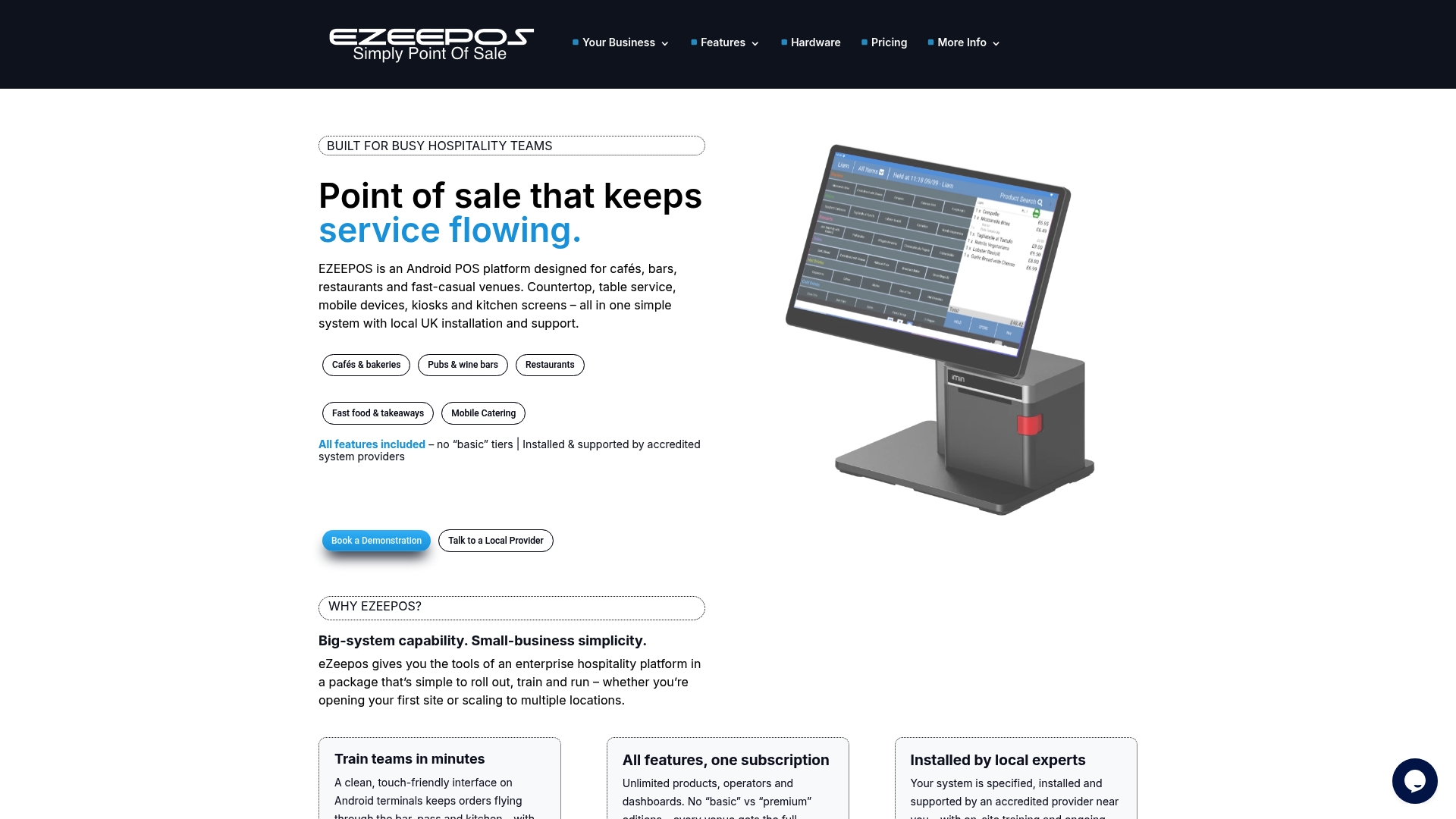
At EzeePOS, we work with UK hospitality venues of all sizes to implement Android-based POS solutions that cover every service mode, from table ordering and counter service to self-service kiosks and mobile catering. There are no tiered pricing traps, no features locked behind paywalls, and no remote support lines. Our accredited local installers set you up properly from day one. Explore the full range of POS system benefits and get practical tips for efficient POS operations to keep your venue running at its best.
Frequently asked questions
What is a POS workflow and why does it matter?
A POS workflow is the end-to-end process from order capture through to payment and reporting. Optimised workflows directly increase table turnover, reduce costly errors, and improve the overall customer experience.
What hardware do I need for a modern hospitality POS?
At minimum, you need a touchscreen terminal, a card reader, and a receipt printer. Most venues also benefit from kitchen display screens and tablets for tableside or mobile ordering.
How can I handle split bills and table merges with my POS?
You need a system with built-in table management that supports splitting and merging at the touch of a button, without requiring staff to manually recalculate or reprocess orders.
What KPIs should I monitor after launch?
Focus on table turnover rate, transaction error frequency, average service time, and throughput per hour. Tracking these metrics consistently helps you spot bottlenecks before they become costly problems.
Recommended
- How to Set Up Mobile POS for UK Hospitality Venues
- Why Hospitality POS Matters for UK Restaurants
- What is enterprise-level POS? A guide for UK hospitality
- Point of Sale System Explained: Vital Benefits for UK Hospitality
- Optimize restaurant coffee service for 2026 profitability
Recent Comments