
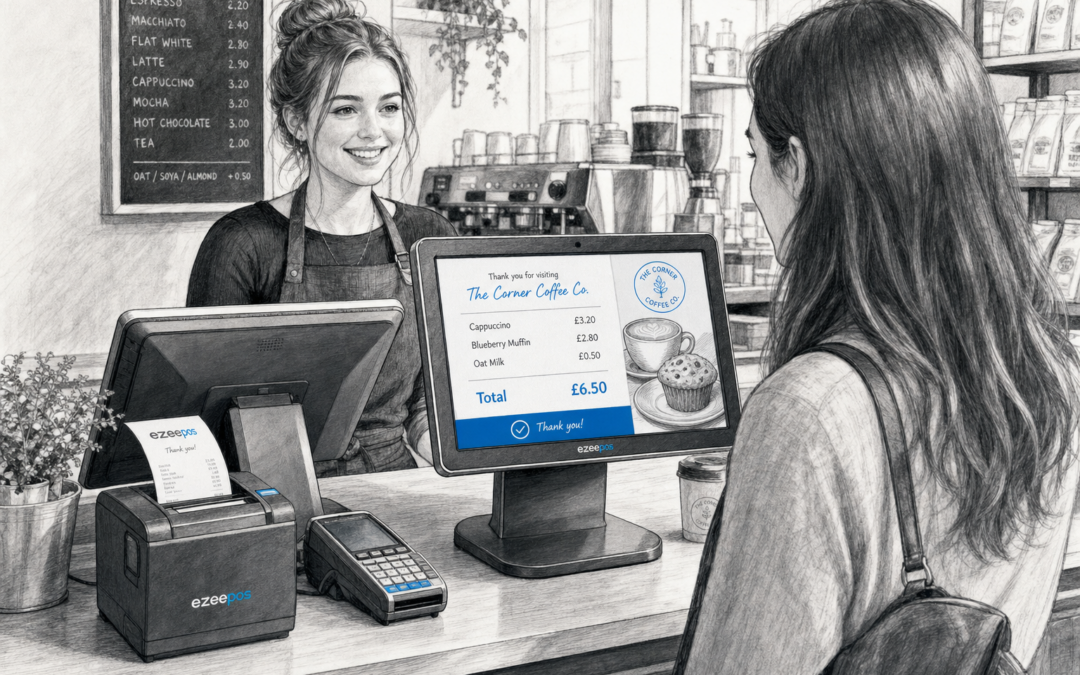
If you run a busy shop, cafe, takeaway or small hospitality venue, the checkout is often one of the few moments where the customer sees exactly what is happening on screen. That is why a customer-facing display can be such a practical part of your EPOS setup. It gives customers a clearer view of the order, totals, payment prompts and any loyalty or receipt options, while helping staff work more confidently at the counter.
For businesses looking at modern EPOS software, the right display setup can support a smoother, more transparent sale. If you want to explore practical options for your own business, eZeePOS is a useful place to start, with more information available at www.ezeepos.co.uk.
What a customer-facing display actually does
A customer-facing display is the screen positioned so the customer can see the transaction as it happens. In retail, that might mean a clear list of scanned items, totals and prompts. In hospitality, it can show order items, custom requests, payment amounts and final confirmation before the payment is completed.
This simple extra screen can make a noticeable difference. Instead of wondering whether the right items were added, customers can check the order as it is entered. That can be especially useful in environments where speed matters and staff are serving people quickly.
Why clarity matters at the counter
When a customer can see the order details in real time, it can reduce misunderstandings before they become problems. This is particularly useful for:
- busy convenience stores and small retail counters
- cafes and takeaway counters with quick-fire orders
- venues where customers often add extras or make changes
- businesses that want receipts and totals to feel more transparent
It also helps staff because fewer questions need to be answered after the sale has already moved on. That can keep queues moving and make the checkout feel calmer.
How customer-facing displays support better service
For independent businesses, speed is only part of the story. Good service is also about confidence and clarity. A customer-facing display supports both by making the process more visible.
Fewer order mistakes
When customers can spot an item that looks wrong before payment is taken, there is still time to correct it. That is especially helpful in hospitality, where food and drink orders may include additions, exclusions or special requests. It can also help in retail when multiple similar items are being sold quickly.
More trust at the till
Customers generally like to know that their order has been captured correctly. Seeing the basket or order total on a separate display can make the transaction feel more open and straightforward. That can matter when there is a queue behind them or when the business is dealing with larger baskets and mixed orders.
Smoother conversations about payment
Once the order is visible, payment becomes easier to explain. Customers can see exactly what they are being asked to pay, which can reduce hesitation at the point of sale. If your business already uses integrated card payments, this can make the handover from order to payment feel more seamless.
Useful in both retail and hospitality
Customer-facing displays are not just for one type of business. They can be useful in different ways depending on how you trade.
Retail use
In retail shops, a display can show scanned items, discounts and totals as they are added. That can be useful in convenience stores, gift shops, hardware stores and other businesses where quick service matters and the checkout needs to stay organised.
Hospitality use
In cafes, bars and takeaways, the same screen can help customers confirm drinks, food items and custom changes. That can support better order accuracy during busy periods, especially where the counter is moving quickly and there is not much time for repeated checks.
How it fits into a modern EPOS setup
A customer-facing display works best when it is part of a well-planned till system rather than an isolated extra screen. Alongside a touchscreen till, receipt printer and payment terminal, it can help create a counter setup that feels easier for staff to use and easier for customers to follow.
That matters for businesses using modern touch-based systems and compact counter layouts. If you are planning a new setup, it is worth thinking about how the customer-facing screen will sit alongside the rest of the hardware, how visible it will be, and whether it matches the way your team serves customers day to day.
When it is especially worth considering
- if your counter is often busy and orders need to move quickly
- if customers regularly ask to check the total before paying
- if your business takes custom orders or item changes
- if you want to make the checkout feel more transparent and professional
Choosing the right layout for your counter
The best customer-facing display setup is usually the one that keeps things simple. It should be easy for staff to read, easy for customers to see and positioned so it does not create clutter at the counter. In a small shop or cafe, that can mean choosing a compact layout that makes the most of limited space.
For businesses using Android-based POS terminals or modern touchscreen till systems, the display should be considered part of the overall counter experience. The aim is not to add complexity. It is to make the sale clearer for everyone involved.
A practical improvement, not a gimmick
It is easy to overlook smaller pieces of EPOS hardware, but customer-facing displays can deliver real day-to-day value. They help customers see what is happening, make it easier to catch mistakes early and support a more confident checkout experience. For independent UK retailers and hospitality businesses, those small improvements can make service feel more organised without changing the way the business works.
If you are reviewing your till setup and want something practical that supports clearer service, eZeePOS can help you think through the right approach for your business. Visit www.ezeepos.co.uk to learn more.
Contact YCR Distribution at sales@ezeepos.co.uk or call 01924 438238.
Recent Comments